
Introduction
A Shopify store audit is a structured, top-to-bottom review of your online store across four critical areas: technical health, page speed, SEO, and conversion rate optimization. Think of it as a full-body checkup for your ecommerce business. You are not looking at one metric or one page. You are evaluating how your entire store performs, loads, ranks, and converts.
Most store owners only think about audits when something goes visibly wrong. Traffic drops. Page speed tanks. Conversion rate dips below 1%. By then, the damage has compounded over months. A single broken redirect chain can quietly kill your crawl budget. One uncompressed hero image can push your LCP past 4 seconds on mobile. A missing canonical tag can split your ranking signals across duplicate pages.
The smarter approach is to audit proactively and regularly. Quarterly audits catch issues before they snowball. Post-redesign audits verify that the new theme did not introduce regressions. Post-migration audits confirm that URL structures, redirects, and schema markup survived the move.
This guide breaks down all four audit pillars in detail, gives you a ready-to-use checklist, lists the best free and paid tools, walks you through a step-by-step audit process, and covers what a Shopify store audit actually costs in India in 2027. Whether you plan to audit your store yourself or hire shopify developer, this is everything you need to know before you start.
What Does a Shopify Store Audit Cover
A proper Shopify store audit is not a single check. It is a layered evaluation across four distinct pillars, each targeting a different part of your store’s performance. Skip one pillar, and you are left with blind spots that will cost you traffic, speed, or revenue.
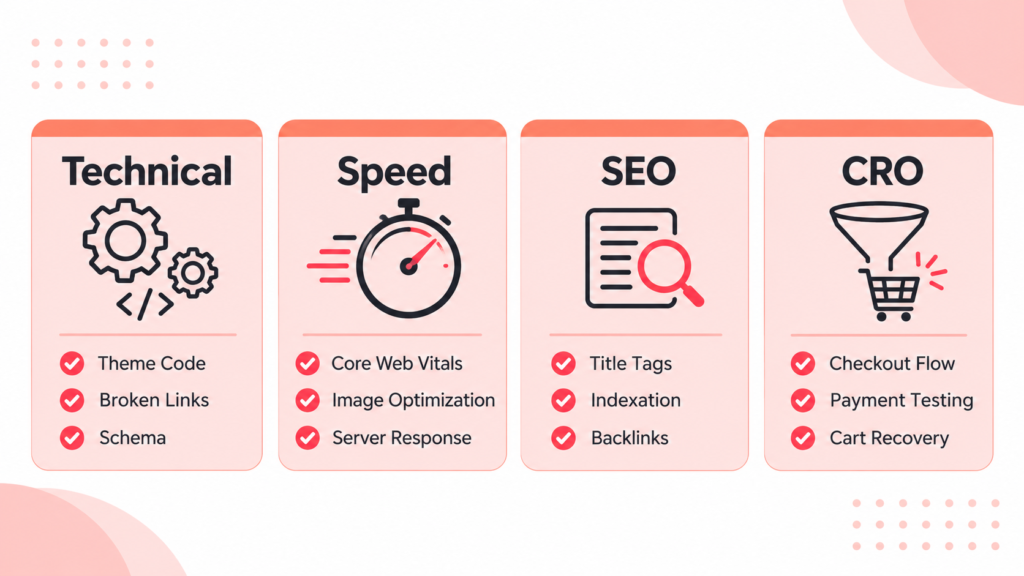
The Four Audit Pillars
Technical Audit
Examines everything under the hood. Theme code quality, broken links, redirect chains, structured data, robots.txt, sitemap accuracy, HTTPS enforcement, and third-party script bloat. This is the foundation. If your technical layer is broken, speed and SEO fixes will not hold.
Speed Audit
Focuses on how fast your store loads and how it performs against Google’s Core Web Vitals benchmarks. LCP (Largest Contentful Paint), INP (Interaction to Next Paint), and CLS (Cumulative Layout Shift) are the three metrics that matter. A store that scores green on PageSpeed Insights but takes 6 seconds to load on a Jio connection in tier-2 India is not actually fast.
SEO Audit
Covers on-page optimization (title tags, meta descriptions, heading hierarchy, URL slugs, alt texts), technical SEO (indexation, canonical tags, crawl errors, sitemap submissions), and content gaps (keyword cannibalization, missing pages, thin content). This pillar determines whether Google can find, crawl, index, and rank your pages correctly.
CRO Audit
Evaluates the conversion funnel from homepage to order confirmation. Trust signals, product page elements, cart friction, checkout flow, payment gateway testing, mobile experience, abandoned cart recovery, and upsell setups. A store that gets traffic but does not convert has a CRO problem, not a traffic problem.
DIY Audit vs Professional Audit
A DIY audit works if you have the technical knowledge to interpret tool outputs correctly. You can run PageSpeed Insights, check Search Console errors, and walk through your own checkout flow. The limitation is depth. Most store owners miss issues like render-blocking scripts, orphan pages, or redirect loops because they do not know what to look for.
A professional audit brings specialized tools (Screaming Frog, Ahrefs), experience across hundreds of stores, and a structured report with prioritized fixes. The investment is higher, but so is the coverage.
How Often Should You Audit
Quarterly audits are the baseline for active stores. Beyond that, trigger an audit after every major change: theme redesign, app installation or removal, migration to Shopify or Shopify Plus, URL structure changes, or any month where traffic or conversion rate drops by more than 15% without an obvious external reason.
Technical Audit: Code, Infrastructure & Backend Health
The technical audit is where you look at the parts of your Shopify store that visitors never see but Google absolutely does. A clean backend means faster crawling, accurate indexing, and fewer mysterious ranking drops.
Theme Code Quality
Start with your theme. If you are running a heavily customized Dawn theme or any third-party theme, check for unused Liquid snippets, redundant CSS files, and JavaScript that loads on every page but only runs on one. Shopify’s Online Store 2.0 architecture uses JSON templates, and stores still running older section-based themes carry unnecessary code weight.
Look for inline CSS and JavaScript embedded directly in Liquid files. These cannot be cached separately and add to your page weight on every load. A clean theme separates structure (Liquid), style (CSS), and behavior (JavaScript) with minimal overlap.
Broken Links, 404 Errors & Redirect Chains
Run a full crawl with Screaming Frog or a similar tool. Flag every 404 error, every broken internal link, and every redirect chain longer than two hops. Redirect chains happen when URL A redirects to URL B, which redirects to URL C. Each hop adds latency and dilutes link equity.
Common culprits on Shopify stores: deleted product pages that still have internal links pointing to them, old collection URLs that were restructured, and blog posts with outdated links in the body content. Fix these by either restoring the destination, updating the link to point directly to the final URL, or setting up a single 301 redirect that skips the chain.
Structured Data & Schema Markup
Shopify themes include basic Product schema by default, but that is rarely enough. Check whether your store has valid schema for Product (with price, availability, reviews), BreadcrumbList, FAQPage (if you have FAQ sections), Organization, and Article (for blog posts).
Validate your schema using Google’s Rich Results Test. Common issues include missing required fields, incorrect price formats, and review markup that references reviews not visible on the page (which Google considers spammy).
Robots.txt & Sitemap
Shopify auto-generates both, but that does not mean they are correct for your store. Check your robots.txt at yourstore.com/robots.txt. Shopify blocks certain paths by default (/admin, /cart, /checkouts), but custom apps or poorly configured sections sometimes create pages that should be blocked but are not.
Your sitemap at yourstore.com/sitemap.xml should include all published products, collections, pages, and blog posts. Cross-reference it with Google Search Console’s indexing report. If Search Console shows indexed pages not in your sitemap, or sitemap URLs returning 404s, your sitemap needs fixing.
HTTPS & Security
Shopify provides free SSL certificates for all stores, so HTTPS should be enforced across every page. What you are checking for is mixed content: pages that load over HTTPS but pull images, scripts, or fonts over HTTP. Mixed content triggers browser warnings and can block resources from loading entirely.
Also check that your domain configuration is correct. The www and non-www versions should resolve to the same destination. Shopify handles this through its domain settings, but custom domains sometimes have DNS misconfigurations that create duplicate-content issues.
Mobile Responsiveness
Over 70% of ecommerce traffic in India comes from mobile devices. Test your store on actual devices, not just Chrome DevTools. Check for horizontal scrolling, overlapping elements, tap targets too close together, and text that requires pinch-to-zoom. Pay special attention to product image galleries, navigation menus, and the checkout flow on screens smaller than 375px wide.
App Bloat
Every Shopify app you install adds code to your theme. Some add JavaScript files that load on every page. Some inject CSS. Some add liquid snippets into your theme.liquid file. The problem is that uninstalling an app does not always remove its code.
Audit your installed apps list. Remove apps you are not actively using. For the ones you keep, check whether they inject scripts globally or only on the pages where they are needed. An app that adds a 200KB JavaScript file to every page but only runs on the product page is dead weight on your homepage, collection pages, and blog.
Third-Party Scripts
Beyond apps, check for tracking pixels (Meta Pixel, Google Analytics 4, Google Ads), chat widgets, review widgets, and any external scripts loaded via the theme.liquid file or through Google Tag Manager. Each script adds to page weight and execution time.
Audit each script for necessity. If you are not actively running Meta ads, the Meta Pixel does not need to be on every page. If your chat widget loads a 400KB bundle but gets used by 2% of visitors, consider lazy-loading it or triggering it only on specific pages.
Speed Audit: Core Web Vitals & Page Load Performance
Page speed is not just a number to chase. It directly impacts your search rankings, your bounce rate, and your conversion rate. Google uses Core Web Vitals as a ranking signal, and users on mobile connections in India will leave your store if the first meaningful content does not appear within 2-3 seconds.
Core Web Vitals Breakdown
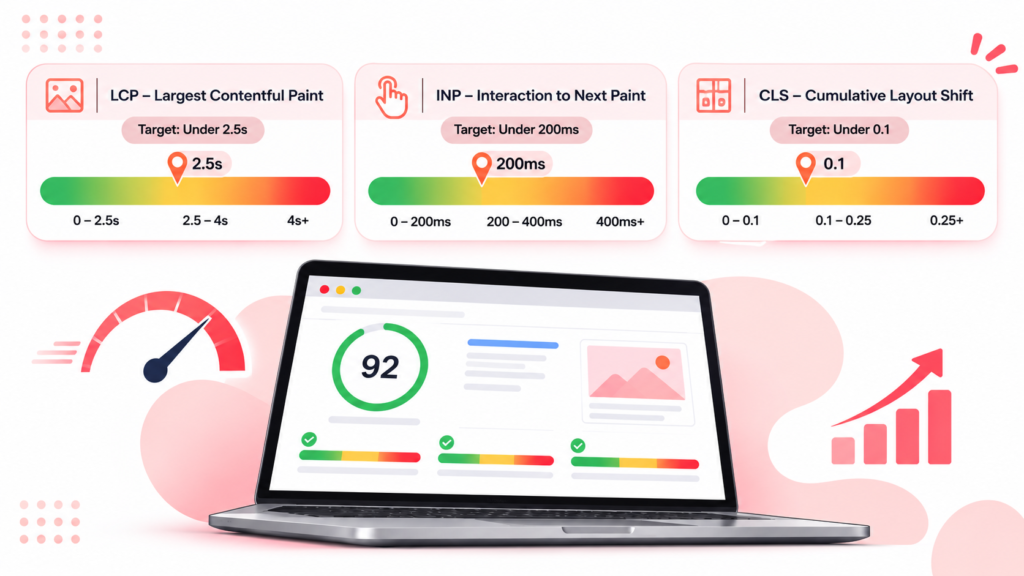
Three metrics define your Core Web Vitals score:
LCP (Largest Contentful Paint)
Measures how long it takes for the largest visible element on the page to render. This is usually your hero image or the main product image. Target: under 2.5 seconds. Anything above 4 seconds is poor.
INP (Interaction to Next Paint)
Replaced FID in March 2024 and measures the latency of all user interactions throughout the page lifecycle, not just the first one. It captures how responsive your page feels when someone taps a size selector, clicks add to cart, or opens a dropdown. Target: under 200 milliseconds.
CLS (Cumulative Layout Shift)
Measures visual stability. If your page elements jump around as fonts, images, or ads load, that is layout shift. Common causes on Shopify: images without explicit width and height attributes, late-loading app banners, and font swaps that change text dimensions. Target: under 0.1.
PageSpeed Insights vs Real-World Performance
Google PageSpeed Insights gives you two scores: lab data (simulated) and field data (real user data from Chrome UX Report). The lab score is what most people screenshot and obsess over. The field data is what Google actually uses for rankings.
A store can score 90 on PageSpeed lab tests and still have poor field data because the lab test simulates a mid-range device on a 4G connection, while your actual users might be on older Android phones with spotty connections. Always prioritize field data. If your field data shows poor LCP or INP, that is what needs fixing, regardless of your lab score.
Image Optimization
Images are the single biggest contributor to page weight on most Shopify stores. Audit every image on your store for format, compression, sizing, and loading behavior.
Shopify automatically serves images in WebP format through its CDN, but only if the original image is uploaded at a reasonable size. Uploading a 5000×5000 pixel product photo and relying on Shopify to resize it on the fly is inefficient. Upload images at the maximum display size they will be shown at. For product images, 2048×2048 pixels is usually sufficient.
Check that all below-the-fold images use lazy loading. Shopify’s native lazy loading works, but some themes and apps override it. Hero images and above-the-fold product images should NOT be lazy-loaded because that delays LCP.
Render-Blocking CSS & JavaScript
Run Lighthouse and check the “Eliminate render-blocking resources” section. Common offenders on Shopify stores include global CSS files from apps, font stylesheets loaded in the head, and JavaScript files that do not use async or defer attributes.
Not every render-blocking resource can or should be eliminated. Your main theme CSS needs to load before the page renders. But third-party app CSS that only applies to the cart drawer should not block the homepage from rendering.
App Impact on Load Time
Measure the speed impact of each installed app. The simplest method: use Chrome DevTools, go to the Network tab, filter by the app’s domain, and check how much it loads in kilobytes and how many requests it makes. Apps that add more than 100KB of JavaScript globally are worth investigating.
Shopify’s built-in speed report also flags apps that slow down your store. Use it as a starting point, then validate with your own testing.
Server Response Time & CDN
Shopify hosts all stores on its own infrastructure with a global CDN. You cannot change your server or CDN provider. What you can control is the amount of work your server has to do per request. Complex Liquid loops, excessive metafield lookups, and large product recommendation sections all increase server response time (Time to First Byte).
If your TTFB consistently exceeds 600ms, audit your theme’s Liquid code for inefficient loops and unnecessary API calls.
Font Loading
Custom fonts are a common speed bottleneck. Each font file (regular, bold, italic) adds 20-50KB to your page weight, and if loaded incorrectly, they can cause layout shifts and invisible text.
Use font-display: swap in your @font-face declarations to prevent invisible text while fonts load. If you use Google Fonts, self-host them on Shopify’s CDN instead of loading them from Google’s servers to eliminate the extra DNS lookup. Subset your fonts to include only the character sets you need. If your store is in English, you do not need Cyrillic or Greek glyphs.
Mobile vs Desktop Speed Gap
Test both separately. It is common to see a Shopify store score 85 on desktop and 45 on mobile. The gap usually comes from unoptimized images that are served at desktop sizes on mobile, JavaScript that executes slowly on mobile processors, and app widgets that are designed for desktop but load fully on mobile.
In India, where mobile accounts for the majority of ecommerce traffic, your mobile speed score is the one that matters most. Audit specifically for mobile performance and prioritize fixes that improve the mobile experience.
SEO Audit: On-Page, Technical SEO & Content Gaps
An SEO audit examines whether Google can properly discover, crawl, index, and rank your Shopify store’s pages. Even a fast, well-coded store will struggle to rank if its SEO fundamentals are broken.
Title Tags & Meta Descriptions
Every product page, collection page, blog post, and static page on your store should have a unique title tag and meta description. Duplicate title tags across product variants or collection filters are one of the most common issues on Shopify stores.
Check title tag length (50-60 characters) and meta description length (150-160 characters). Make sure your primary keyword appears naturally in the title tag, ideally near the beginning. Your meta description should include a clear value proposition and a reason to click, not just a list of keywords.
Shopify auto-generates title tags from product names and descriptions from product descriptions. If you have not manually customized these for every page, they are almost certainly not optimized.
URL Structure & Slugs
Shopify enforces a fixed URL structure: /products/, /collections/, /pages/, /blogs/. You cannot change these prefixes. What you can control is the slug after the prefix.
Audit your slugs for readability and keyword relevance. yourstore.com/products/blue-cotton-t-shirt-men is better than yourstore.com/products/prod-12847-var3. Remove auto-generated junk, unnecessary numbers, and overly long slugs. Keep them short, descriptive, and hyphenated.
If you change a slug, always set up a 301 redirect from the old URL to the new one. Shopify creates automatic redirects for products when you change the handle, but not always for pages and blog posts.
Heading Hierarchy
Every page should follow a clean H1, H2, H3 hierarchy. The H1 should be the page title and appear only once. H2s should mark major sections. H3s should sit under their parent H2.
Common issues on Shopify stores: themes that use H1 for the store name on every page (meaning product names become H2 or lower), product descriptions that jump from H2 to H4, and blog posts with no heading structure at all.
Internal Linking & Orphan Pages
An orphan page is a page on your store that has no internal links pointing to it. Google may never discover it, and even if it gets indexed through the sitemap, it receives no link equity from the rest of your site.
Run a crawl and compare the list of crawled pages with your sitemap. Any page in the sitemap that was not discovered during the crawl is likely an orphan. Common orphans on Shopify stores: old blog posts, out-of-season collection pages, and static pages created for one-time campaigns.
Your internal linking structure should follow a logical hierarchy. Homepage links to main collections. Collections link to products. Blog posts link to relevant products and collections. Products link to related products. Every page should be reachable within 3-4 clicks from the homepage.
Image Alt Texts
Alt text serves two purposes: accessibility for screen readers and context for Google’s image indexing. Every product image, blog image, and banner should have descriptive alt text that includes relevant keywords without stuffing.
Bad alt text: “image1.jpg” or “product photo”. Good alt text: “navy blue cotton t-shirt for men front view”. The alt text should describe what the image actually shows, with your target keyword woven in naturally.
Canonical Tags & Duplicate Content
Shopify creates duplicate URLs through its collection-based product paths. A product at /products/blue-shirt also exists at /collections/mens/products/blue-shirt. Shopify handles this with canonical tags that point back to the /products/ version, but custom theme modifications sometimes break this.
Check your canonical tags using a crawl tool. Every page should have a self-referencing canonical unless it is a known duplicate that should point elsewhere. Products accessed through collection URLs should canonicalize to the /products/ version.
Indexation & Crawl Errors
Open Google Search Console and review the Pages section. Check for pages that are “Crawled but not indexed” and “Discovered but not indexed.” These are pages Google knows about but has decided not to include in search results.
Common causes: thin content (pages with very little text), duplicate content, low internal link equity, and noindex tags accidentally left on pages. Also check for pages blocked by robots.txt that you actually want indexed.
Backlink Profile
Your backlink audit is about quality, not quantity. Use Ahrefs or SEMrush to pull your backlink profile. Check your Domain Rating (DR), the number of referring domains, and whether you have toxic backlinks pointing to your store.
Toxic backlinks come from spammy directories, link farms, and irrelevant foreign-language sites. If you have a significant number of these, consider using Google’s Disavow Tool. For Indian D2C brands, a DR between 15-30 is typical for newer stores, and 30-50 for established ones.
Content Gaps & Keyword Cannibalization
Keyword cannibalization happens when multiple pages on your store target the same keyword, forcing them to compete against each other in search results. This is common when product pages and blog posts target the same terms, or when similar collection pages overlap.
Identify cannibalization by searching site:yourstore.com “target keyword” in Google. If multiple pages show up for the same query, decide which page should rank, consolidate the content, and redirect the weaker page.
Content gap analysis reveals keywords your competitors rank for but you do not. Use Ahrefs’ Content Gap tool or SEMrush’s Keyword Gap tool to find these opportunities. Focus on transactional and informational keywords relevant to your products and niche.
CRO Audit: Conversion Rate & Checkout Flow
Traffic without conversions is just server cost. The CRO audit evaluates every step of your buyer’s journey, from the first homepage impression to the order confirmation page, and identifies where you are losing potential customers.
Homepage: Trust & First Impression
Your homepage has about 3-5 seconds to establish credibility. Audit the above-the-fold section for clear value proposition, professional product imagery, and visible trust signals. Trust signals include customer review counts, media mentions (“As seen in”), security badges, and clear contact information.
For Indian D2C stores, trust signals carry extra weight because online shoppers are more cautious about buying from newer brands. Display your return policy prominently. Show real customer photos if you have them. If you have been featured in any publications or platforms, show it above the fold.
Product Pages
Product pages do the heavy lifting in conversion. Audit each element:
Product images should be high-resolution, zoomable, and show the product from multiple angles. For fashion and lifestyle brands, include lifestyle shots alongside studio shots. Video content on product pages consistently increases conversion rates.
Product descriptions should address the buyer’s actual questions, not just list features. What material is it? How does it fit? How should they care for it? What problem does it solve? A description that reads like a spec sheet converts worse than one that speaks to the buyer.
Reviews and ratings should be visible without scrolling past the product description. If you use a reviews app (Judge.me, Loox, Yotpo), make sure the star rating appears near the price and the full reviews section is easy to find.
CTAs (Add to Cart, Buy Now) should be prominent, high-contrast, and sticky on mobile. If the user has to scroll back up to find the Add to Cart button, you are losing sales.
Cart Page Friction
The cart page is where hesitation peaks. Common friction points include unexpected shipping costs appearing for the first time, no estimated delivery date, missing trust badges, and a cluttered layout that makes the total confusing.
If you offer free shipping above a threshold, show a progress bar. If you charge for shipping, display the cost on the product page itself, not as a surprise in the cart.
Checkout Flow
Shopify’s checkout has improved significantly, especially with Checkout Extensibility for Shopify Plus stores. Audit for the number of steps (fewer is better), required fields (do not ask for more than you need), guest checkout availability, and auto-fill behavior.
For Indian stores, test the checkout with Indian phone numbers, PIN codes, and addresses. Some custom checkout modifications break when Indian address formats do not match expected patterns.
Payment Gateway Testing
Do not just check that payment gateways are connected. Actually place a test order through each one. For Indian Shopify stores, test Razorpay, Cashfree, PayU, and COD (Cash on Delivery) flows separately.
Test UPI payments on mobile. Test net banking. Test saved card payments. Test what happens when a payment fails and the customer retries. Test whether the order confirmation and email trigger correctly for each payment method. COD orders in particular need separate testing because they skip the payment processing step entirely and sometimes cause issues with order tagging and fulfillment workflows.
Mobile Checkout Experience
Over 70% of your Indian customers are likely checking out on mobile. Test the entire checkout flow on a phone. Check that form fields are large enough to tap accurately, that the keyboard type matches the input (numeric keyboard for phone and PIN code fields), and that autofill works correctly for returning customers.
UPI intent flow should work smoothly on mobile. When a customer selects UPI, they should be redirected to their UPI app, complete the payment, and return to your store’s confirmation page without getting stuck on a loading screen.
Abandoned Cart Recovery
Audit your abandoned cart recovery flow. At minimum, you should have automated email recovery (sent within 1-4 hours of abandonment) and WhatsApp recovery (if you use a tool like Interakt, Wati, or AiSensy).
Check the email/WhatsApp content. Does it include the product image? Does it show the price? Is there a direct link back to the cart? Do discount codes (if offered) actually work? A broken recovery flow is worse than no recovery flow because it makes your brand look unprofessional.
Upsell & Cross-Sell
Check whether your store has upsell and cross-sell mechanisms in place. Product pages should suggest complementary products. The cart page or cart drawer should offer relevant add-ons. Post-purchase upsells (on the thank you page) have high acceptance rates because the customer has already committed.
Audit the relevance of these suggestions. Generic “You may also like” sections with random products do not convert. Curated recommendations based on actual purchase patterns or product complementarity perform significantly better.
Shopify Store Audit Checklist (2027)
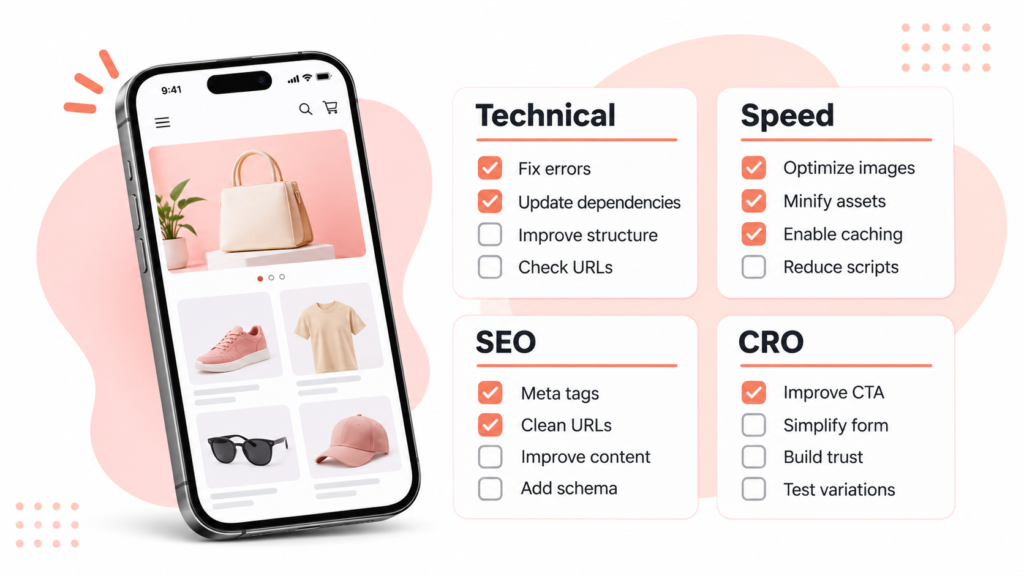
Use this as a quick-reference checklist when running your audit. Each item maps back to the detailed sections above.
Technical Checklist
- Theme code reviewed for unused Liquid snippets, CSS, and JavaScript
- All broken links and 404 errors identified and fixed
- Redirect chains shortened to single 301 redirects
- Structured data validated (Product, BreadcrumbList, FAQPage, Organization schema)
- robots.txt reviewed and correct for your store
- Sitemap.xml includes all published pages and matches Search Console indexing
- HTTPS enforced across all pages with no mixed content
- Mobile responsiveness tested on actual devices (not just Chrome DevTools)
- Unused apps removed and leftover code cleaned from theme files
- Third-party scripts audited for necessity and load impact
Speed Checklist
- LCP under 2.5 seconds on both mobile and desktop
- INP under 200 milliseconds
- CLS under 0.1
- All images in WebP format with proper compression
- Below-the-fold images using lazy loading
- Hero and above-the-fold images NOT lazy-loaded
- Render-blocking CSS and JavaScript identified and addressed
- Font loading optimized with font-display: swap
- App load impact measured individually per app
- Mobile speed score within 10-15 points of desktop score
- Field data (Chrome UX Report) reviewed alongside lab data
SEO Checklist
- Unique title tags on every page (50-60 characters, keyword near beginning)
- Unique meta descriptions on every page (150-160 characters)
- Clean, keyword-relevant URL slugs across products, collections, and pages
- H1, H2, H3 heading hierarchy followed correctly on every page
- Internal linking structure reviewed with no orphan pages
- Descriptive alt text on every image
- Canonical tags correct (especially for collection-based product URLs)
- No duplicate content or keyword cannibalization issues
- Google Search Console showing zero critical indexing errors
- Sitemap submitted and all important pages indexed
- Backlink profile checked for toxic links
- Content gaps identified against competitors
CRO Checklist
- Homepage loads trust signals above the fold
- Product pages have high-quality images, detailed descriptions, and visible reviews
- Add to Cart and Buy Now CTAs are prominent and sticky on mobile
- Cart page shows no surprise costs and displays estimated delivery
- Guest checkout enabled with minimal required fields
- All payment gateways tested with real test orders (Razorpay, UPI, COD)
- Mobile checkout tested on actual phone (autofill, keyboard types, UPI intent)
- Abandoned cart recovery active via email and WhatsApp
- Upsell and cross-sell recommendations are relevant and configured
- Entire checkout flow tested end-to-end on mobile
Best Tools for a Shopify Store Audit (2027)
You do not need every tool on this list. Pick based on your budget and the depth of audit you are doing.
Free Tools
Google PageSpeed Insights
Gives you Core Web Vitals scores, Lighthouse audits, and both lab and field data. It is the starting point for every speed audit and it costs nothing.
Google Search Console
Shows your indexing status, crawl errors, manual actions, and search performance data. If you are not already using Search Console, set it up before you start any SEO audit because it needs time to collect data.
Google Lighthouse
Built into Chrome DevTools runs performance, accessibility, SEO, and best practices audits directly in your browser. It gives you more granular detail than PageSpeed Insights, including specific recommendations with file-level references.
Screaming Frog SEO Spider (Free Tier)
Crawls up to 500 URLs for free. For small to mid-sized Shopify stores, this is enough to catch broken links, redirect chains, missing title tags, duplicate content, and orphan pages.
Paid Tools
Ahrefs (Starts at $129/month)
Is the go-to for backlink analysis, keyword research, content gap analysis, and site audits. Its Site Audit tool crawls your store and flags technical SEO issues with priority levels.
SEMrush (Starts at $139.95/month)
Offers similar capabilities to Ahrefs with additional features for PPC research and content optimization. Its Site Audit tool is particularly good at catching on-page SEO issues.
Screaming Frog (Paid, £199/year)
Removes the 500 URL crawl limit and adds features like custom extraction, JavaScript rendering, and integration with Google Analytics and Search Console data.
Microsoft Clarity
Microsoft Clarity is free provide heatmaps, session recordings, and user behavior data. These are essential for CRO audits because they show you exactly where users click, scroll, and drop off.
GTmetrix Pro (Starts at $5.99/month)
Gives you detailed waterfall charts, video playback of page loads, and monitoring alerts. The free version is useful, but Pro adds testing from multiple locations and scheduled monitoring.
Shopify-Native Tools
Shopify Online Store Speed Report
Provides a speed score benchmarked against similar stores. It is not as detailed as Lighthouse, but it highlights which apps and theme features are slowing you down.
Shopify Theme Inspector
Chrome extension shows you exactly how long each Liquid section and snippet takes to render. This is invaluable for identifying slow Liquid code that PageSpeed Insights cannot pinpoint.
Shopify Analytics
Provides built-in conversion funnel data, showing drop-off rates between sessions, add-to-cart events, checkout starts, and completed orders. Use this as your baseline before any CRO audit.
Quick Comparison
| Tool | What It Checks | Free or Paid |
| Google PageSpeed Insights | Speed, Core Web Vitals | Free |
| Google Search Console | Indexing, crawl errors, search performance | Free |
| Lighthouse | Performance, SEO, accessibility | Free |
| Screaming Frog | Full site crawl, broken links, redirects | Free (500 URLs) / Paid |
| Ahrefs | Backlinks, keywords, site audit | Paid |
| SEMrush | Site audit, keywords, PPC | Paid |
| Microsoft Clarity | Heatmaps, session recordings | Free |
| GTmetrix | Waterfall charts, monitoring | Free / Paid |
| Shopify Speed Report | Store speed benchmark | Free (built-in) |
| Shopify Theme Inspector | Liquid render times | Free (extension) |
How to Do a Shopify Store Audit Step-by-Step
A structured approach prevents you from jumping between issues and losing track of what has been checked. Follow this sequence for a complete audit.
Step 1: Set Your Benchmarks
Before you change anything, document your current numbers. Record your PageSpeed scores (mobile and desktop), Core Web Vitals (LCP, INP, CLS from field data), Google Search Console metrics (total indexed pages, average position, click-through rate), and your Shopify Analytics conversion funnel (sessions to add-to-cart to checkout to purchase). These numbers become your before snapshot. Without them, you cannot measure whether your fixes actually improved anything.
Step 2: Run Technical Checks
Start with a full site crawl using Screaming Frog or a similar tool. Flag broken links, redirect chains, missing meta tags, duplicate title tags, and pages with no H1. Check your robots.txt and sitemap for accuracy. Validate structured data using Google’s Rich Results Test on your homepage, a product page, a collection page, and a blog post.
Step 3: Run Speed Tests
Test your homepage, one product page, one collection page, and your cart page through PageSpeed Insights. Record both lab and field scores. Use the Shopify Theme Inspector to identify slow Liquid sections. Run a GTmetrix waterfall analysis to see exactly which resources load first and which block rendering.
Test on mobile separately. Use Chrome DevTools throttled to a mid-range mobile device on a 4G connection to simulate what most Indian users experience.
Step 4: Run the SEO Crawl
Use Ahrefs or SEMrush Site Audit for a comprehensive SEO crawl. Review title tags, meta descriptions, heading hierarchy, canonical tags, and indexation status. Cross-reference crawl data with Google Search Console’s Pages report. Identify keyword cannibalization by checking which pages rank for the same queries. Run a content gap analysis against your top 3-5 competitors.
Step 5: Review CRO & Checkout Flow
Walk through your store as a customer. Start from the homepage, browse a collection, view a product, add to cart, and complete checkout. Do this on desktop and mobile. Test every payment method. Test the abandoned cart recovery flow by abandoning a cart and checking whether the email and WhatsApp recovery triggers fire correctly.
If you have Hotjar or Clarity installed, review session recordings and heatmaps from the last 30 days. Look for pages where users scroll but do not click, product pages where users leave without adding to cart, and checkout steps with high drop-off rates.
Step 6: Document Everything
Create a findings report that lists every issue found, grouped by pillar (Technical, Speed, SEO, CRO). For each issue, note what the problem is, where it occurs (specific URL or page), the severity (critical, high, medium, low), and the recommended fix.
A spreadsheet or a structured document works best. Avoid vague entries like “speed is slow” and instead write “LCP on mobile homepage is 4.8 seconds, caused by uncompressed hero image (2.4MB PNG, should be under 200KB WebP).”
Step 7: Prioritize Fixes
Not everything needs to be fixed at once. Prioritize by impact and effort. Quick wins are high-impact fixes that take minimal time: compressing images, removing unused apps, fixing broken links, adding missing alt texts. These should be done first.
Medium-effort fixes include restructuring internal links, rewriting meta descriptions, and optimizing Liquid code. Long-term projects include theme code refactoring, content gap filling, and CRO testing programs.
Step 8: Re-Audit After Implementation
After implementing your fixes, run the same tests again. Compare your new scores against the benchmarks you set in Step 1. This validates that your changes actually worked and did not introduce new issues.
Set a reminder to repeat the full audit quarterly. Store performance degrades over time as new apps are added, content is published, and Shopify pushes platform updates. Regular audits catch regressions before they compound.
Shopify Store Audit Cost in India (2027)
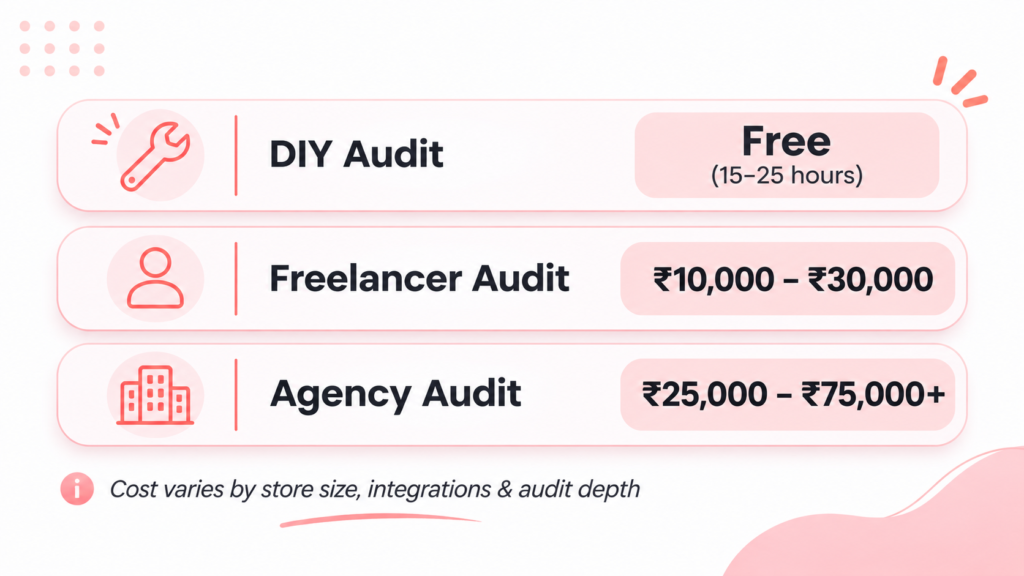
Audit costs vary based on who does the work, the size of your store, and the depth of analysis. Here is what you can expect in the Indian market.
DIY Audit
Cost: Free (your time only). A thorough DIY audit takes 15-25 hours spread over a week. This includes running all the tools, reviewing every report, documenting findings, and creating a prioritized fix list. The tools themselves are free or have free tiers that cover small to mid-sized stores.
The downside is depth. You will catch the obvious problems, but issues like hidden slow scripts, inefficient theme code, or tricky duplicate page errors are easy to miss without hands-on experience across multiple stores.
Freelancer Audit
Cost: ₹10,000 to ₹30,000 depending on the scope. A basic audit from a Shopify-experienced freelancer covers the four pillars at a surface level and delivers a findings report. A detailed audit with actionable recommendations, priority scoring, and tool-specific screenshots costs more.
What to look for: a freelancer who has worked on at least 10-15 Shopify stores, uses professional tools (not just free PageSpeed tests), and provides a structured report rather than a list of bullet points in a WhatsApp message.
Agency Audit
Cost: ₹25,000 to ₹75,000+ for a comprehensive audit. At the lower end, you get a standard audit covering all four pillars with a detailed report and prioritized recommendations. At the higher end, you get deep-dive analysis with Microsoft Clarity session reviews, competitor benchmarking, custom speed optimization roadmaps, and sometimes the first round of fixes included.
Shopify Agency audits are worth the investment for stores doing over ₹5-10 lakh in monthly revenue, where even a 10-15% improvement in conversion rate or speed metrics translates to significant revenue gains.
If you are evaluating whether to handle the audit in-house or bring in a Shopify development partner, understanding the full scope of Shopify development for D2C brands helps set the right expectations.
What Affects the Cost
Store size matters. A store with 50 products and 5 collections is significantly faster to audit than one with 2,000 products, 50 collections, and multiple international markets. Number of integrations also affects scope. A store with 15 apps, custom API integrations, and a headless frontend takes longer to audit than a standard theme-based store.
Depth of CRO analysis is the other variable. A basic CRO review checks the visible elements. A detailed CRO audit involves reviewing session recordings, running heatmap analysis, and sometimes setting up A/B tests to validate hypotheses.
What a Proper Audit Report Should Include
A proper audit report should include:
1. Executive summary with the top 5-10 critical findings
2. Full issue list organized by pillar (Technical, Speed, SEO, CRO)
3. Severity rating for each issue (critical, high, medium, low)
4. Specific fix recommendations with clear implementation steps
5. Screenshots or references showing where each issue exists
6. Before-and-after benchmarks if fixes were included
7. Prioritized action plan with quick wins listed first
8. Tools used during the audit and their versions
If the report you receive is just a checklist with green and red checkmarks and no explanation, that is not an audit report. That is a raw tool export.
Common Audit Mistakes That Waste Your Time
An audit is only useful if it leads to actionable improvements. These are the mistakes that turn a productive exercise into wasted effort.
Running Audits Without Clear Goals
Auditing everything because “it has been a while” produces a 50-item findings list with no clear direction. Before starting, define what you are trying to solve. If your conversion rate dropped, focus the audit on CRO and checkout. If traffic declined, prioritize SEO and technical checks. If page speed complaints are coming in, start with the speed audit. A focused audit with clear goals produces better outcomes than a broad sweep with no hypothesis.
Ignoring Mobile Performance
Running all your tests on a desktop browser and calling it done is a common oversight. Over 70% of ecommerce traffic in India comes from mobile devices, and mobile performance is almost always worse than desktop due to slower processors, smaller screens, and variable network conditions. If your audit only covers desktop, you are evaluating the experience that less than 30% of your users actually have.
Fixing Everything at Once
A comprehensive audit will surface dozens of issues across all four pillars. The temptation is to fix everything immediately. This is counterproductive because you cannot isolate which fixes actually moved the needle. If you change 15 things simultaneously and your conversion rate goes up, you do not know which change caused the improvement. Prioritize by impact, implement in batches, and measure the effect of each batch before moving to the next.
Not Re-Auditing After Fixes
Implementing fixes without re-testing is surprisingly common. A redirect fix might introduce a new chain. An image compression pass might break lazy loading. A checkout flow change might affect payment gateway behavior. Always re-run the relevant tests after implementing fixes to confirm that you solved the original issue and did not create new ones.
Skipping Checkout & Payment Flow Testing
Many store owners audit their frontend (homepage, product pages, collections) but skip the checkout flow and payment gateways. In India, where COD, UPI, and multiple payment gateways are involved, the checkout flow has more moving parts than in most markets. A COD order that does not trigger the correct fulfillment workflow, or a UPI payment that fails silently on certain apps, costs you real revenue. Always complete test orders through every payment method.
Relying Only on Automated Tools
Automated tools are excellent at flagging technical issues, but they cannot evaluate user experience. A tool will tell you that your CLS score is 0.08, but it will not tell you that your size selector is confusing or that your product descriptions do not answer the questions buyers actually have. Combine automated tool outputs with manual review. Walk through your store as a customer. Ask someone unfamiliar with your brand to do the same and watch where they get confused.
Frequently Asked Questions
A DIY audit takes 1 day spread over 3-5 days if you are thorough. A professional audit (freelancer or agency) typically takes 5-10 business days from start to final report delivery, depending on store size and audit depth.
Yes, if you have a working understanding of SEO, page speed metrics, and ecommerce conversion principles. The free tools covered in this guide are sufficient for a surface-level to mid-depth audit. Where self-audits fall short is in interpreting results correctly and knowing which issues to prioritize based on experience across multiple stores.
A technical audit examines code quality, broken links, redirects, schema markup, robots.txt, and overall backend health. A speed audit specifically focuses on page load performance, Core Web Vitals, image optimization, render-blocking resources, and server response times. They overlap in some areas (app bloat affects both), but each has its own set of tools and benchmarks.
Quarterly is the recommended baseline for active stores. Additionally, trigger an audit after major changes like a theme redesign, migration, adding or removing multiple apps, or any month where traffic or conversion rate drops by more than 15% without an obvious explanation.
Significantly. Every app adds JavaScript, CSS, or Liquid code to your theme. Some apps load heavy scripts on every page even when they only function on specific pages. Uninstalling an app does not always remove its code from your theme files. Apps are one of the most common causes of speed degradation and are always worth auditing individually.
Yes, especially for stores that have been running for 6+ months without one. Small stores with 50-200 products often have proportionally more issues per page because there is less content to dilute the impact of each problem. A single broken redirect or unoptimized hero image affects a larger percentage of your total pages on a small store.
Start with quick wins: fix broken links, compress images, remove unused apps, add missing alt texts. Then move to medium-effort fixes: rewrite meta descriptions, restructure internal links, optimize Liquid code. Schedule long-term projects: content gap filling, CRO testing, theme refactoring. Re-audit after each batch of fixes to confirm improvements and catch any regressions.
Freelancer audits range from ₹10,000 to ₹30,000. Agency audits range from ₹25,000 to ₹75,000+. The cost depends on store size (number of products and pages), number of integrations, and the depth of analysis. Stores doing over ₹5-10 lakh in monthly revenue typically see a positive ROI from professional audits within 2-3 months through improved speed, SEO rankings, and conversion rates.
Conclusion
A Shopify store audit is not a one-time exercise. It is a recurring process that keeps your store technically sound, fast, discoverable, and optimized for conversions. The stores that consistently outperform their competition are the ones that audit regularly, prioritize fixes by impact, and re-test after every round of changes. Start with the checklist in this guide, use the right tools for your budget, and treat your audit findings as a roadmap rather than a to-do list you need to finish overnight.






This Post Has One Comment